I'm having trouble with my multi-factor login. How do I reset it?
If you have a new mobile phone or deleted the Microsoft Authenticator app from your phone, you'll need to reset multi-factor authentication (MFA) to be able to sign in to some services again.
If you have access to BankID, eduID or an ID key, you can do it yourself in our ID portal: Electronic Identity - Dalarna University
How do I do it?
- Go to our ID portal: Electronic Identity - Dalarna University
- Select Reset MFA
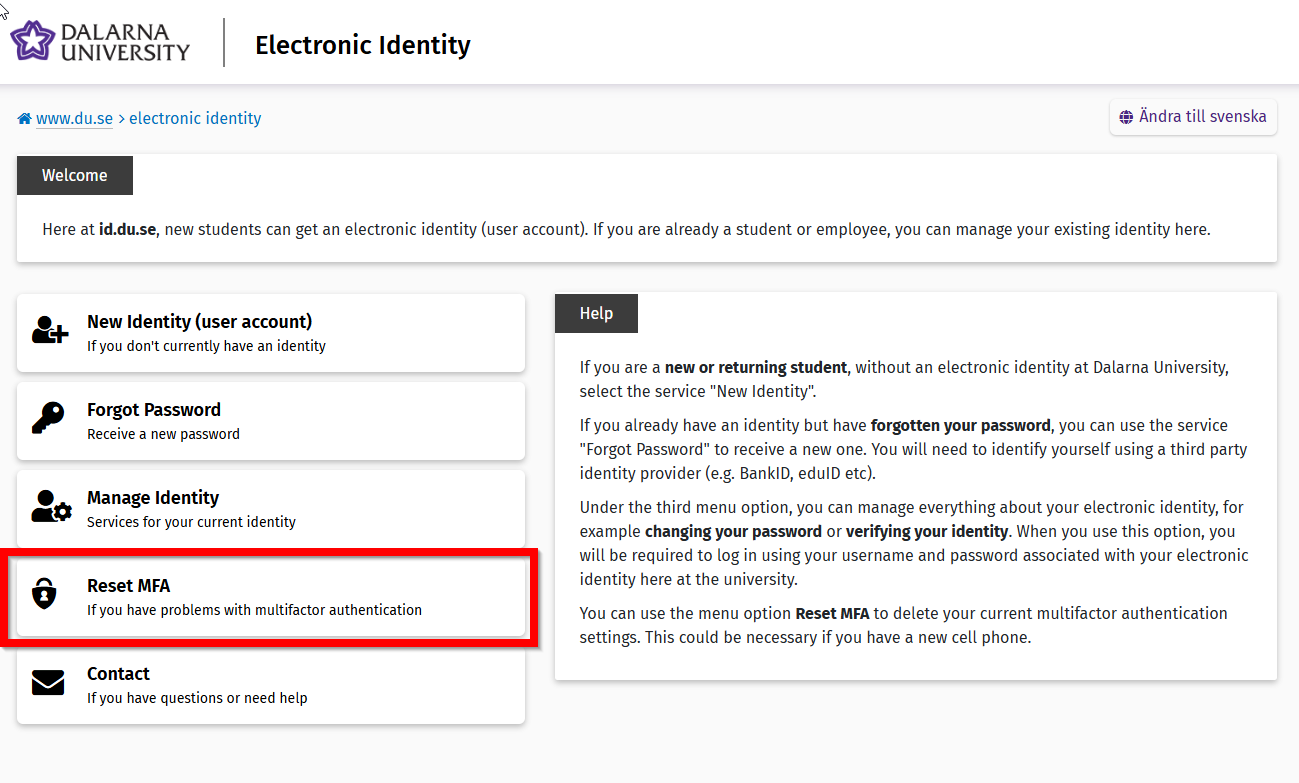
- Click Identify yourself

- Choose the identification method that is easiest for you, such as: BankID
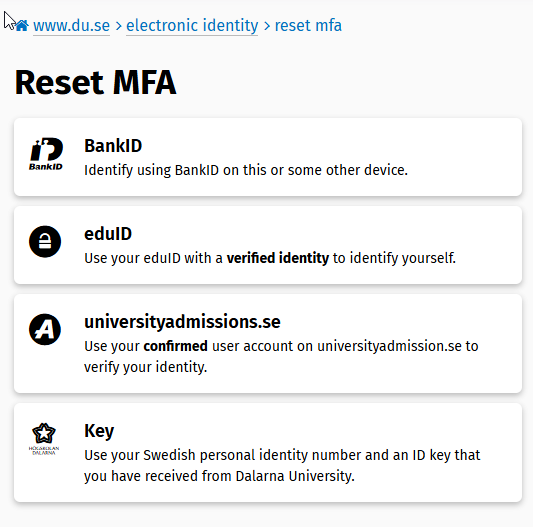
- After logging in, you will need to delete your current multi-factor login settings. Click Delete.

- Now your MFA settings are deleted

- At the next login, you'll be prompted to re-register for multi-factor sign-in. More info about this:
I am asked for additional information (More information required). What's this all about? - faq.du.se
This article helped me!
Message